![MicrosoftTeams-image (28).png]](https://helpdesk.turnup.world/hs-fs/hubfs/MicrosoftTeams-image%20(28).png?width=85&height=85&name=MicrosoftTeams-image%20(28).png)
Want to automatically call patients to confirm their appointments?
With the right setup from the start, you reduce manual work at the front desk and reach patients more efficiently.
⚙️ How does it work?
These settings are only available to Admins. Regular users do not have access.
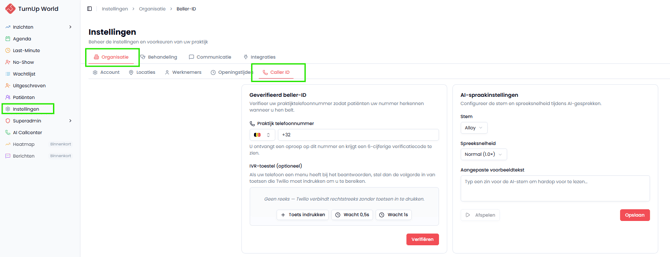
You can find them here:
Settings → Organization → Caller ID
☎️ Step 1: Verify your phone number (Caller ID)
Patients will be called using your practice phone number, so you need to verify it first.
Without verification, you won’t be able to make outbound calls.
How to do it:
- Go to Settings → Organization → Caller ID
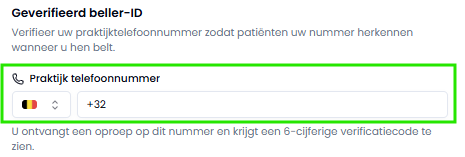
- Enter your practice phone number
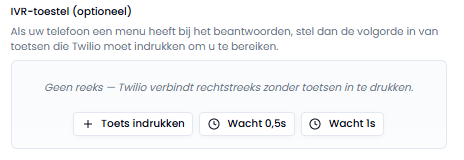
- (Optional) If your phone system has a menu like “Press 1 for new patients, press 2 to book an appointment”, then the AI call center needs to navigate through it automatically. Otherwise, it won’t be able to reach you to deliver the verification code.
The easiest solution is to temporarily disable the phone menu for a few minutes to complete the verification. Afterwards, you can simply enable it again. If this is not possible, you can follow the IVR settings below in the TurnUp application.
You define which keys should be pressed and how long the system should wait.
- *Numbers (1–9, , #) → press a key
- W → wait 1 second
- w → wait 0.5 seconds
Examples
Example of your phone menu What to enter in the IVR field What the AI call center does “Press 1 to make an appointment” 1Presses 1 automatically and connects you. You can enter the verification code. Two options with a short pause (menu continues talking ~2 sec) 1WW2Presses 1 → waits 1 second → waits 1 second → presses 2 → connects you. You can enter the verification code.
- Click Verify
- You’ll receive a call from a +1 (415) number
- Enter the 6-digit verification code
⚠️ In some cases, you may need to end with #, depending on your phone system - Click Confirm
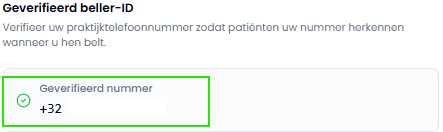
- Phone number successfully verified: all outbound calls will use this number
🎙️ Step 2: Choose voice and speaking speed
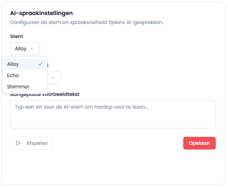
After verification, you can configure the AI voice.
- Voice → choose from multiple voices
- Speed → adjust speaking speed
Test your setup:
- Enter a sample sentence
- Click Play
- Adjust if needed
- Click Save
💬 Step 3: Customize the greeting message
You can fully personalise the opening message of the AI call.
👉 The message will automatically be translated into the patient’s language.
Option 1: Generate with AI
- Enter a prompt like: “Formal greeting for a dental practice”
- Click Generate with AI

- The system creates a ready-to-use message

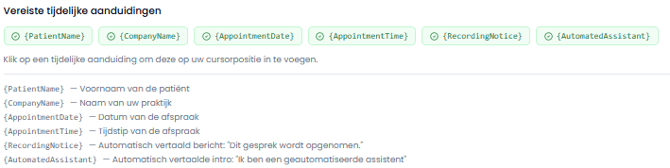
⚠️ Important
-
You must include all required placeholders. Otherwise, you won’t be able to save.
-
Option 2: Write your own
You can also write your own message manually.

⚠️ You must include all required placeholders. Otherwise, you won’t be able to save.
📊 Monthly Call Limit
Each practice has a monthly call limit.
- This limit is set by TurnUp Support
- Once reached, no new calls can be made until the next month
✅ What's in for you?
With the AI outbound call center properly set up:
- Call patients using your recognisable practice number
- Reduce manual work at the front desk
- Reach patients faster and more efficiently
- Increase confirmations and reduce no-shows
- Keep your agenda under control
In short: your call center becomes a natural extension of your front desk.
❓ Questions?
Contact us via support. We're happy to help!