![MicrosoftTeams-image (28).png]](https://helpdesk.turnup.world/hs-fs/hubfs/MicrosoftTeams-image%20(28).png?width=85&height=85&name=MicrosoftTeams-image%20(28).png)
📍 Where can I find the communication timeline?
Follow these steps:
-
Go to the TurnUp application
-
Open the No-Show module
-
Click on a potential no-show appointment
➡️ The timeline appears automatically when you open the appointment.
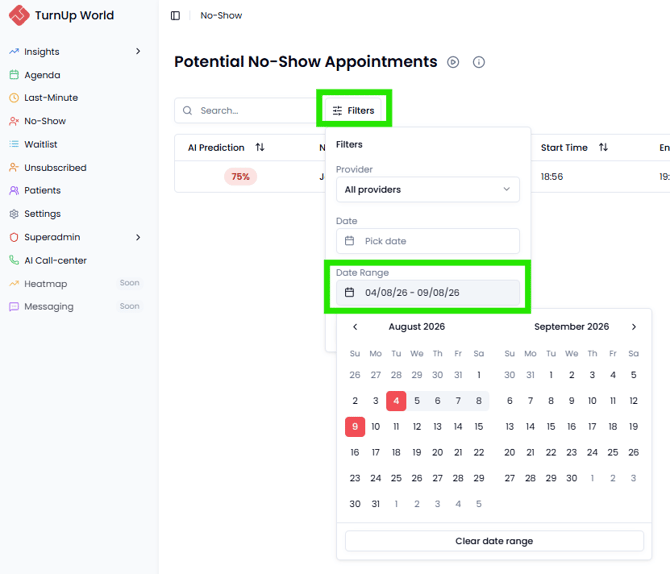
🕓 Viewing past appointments
Want to check the communication for an older appointment, for example to see whether a patient who didn't show up actually received the communication?
Just adjust the date filter at the top. This lets you view communication going back to the first day of last month.
👀 What can I see in the timeline?
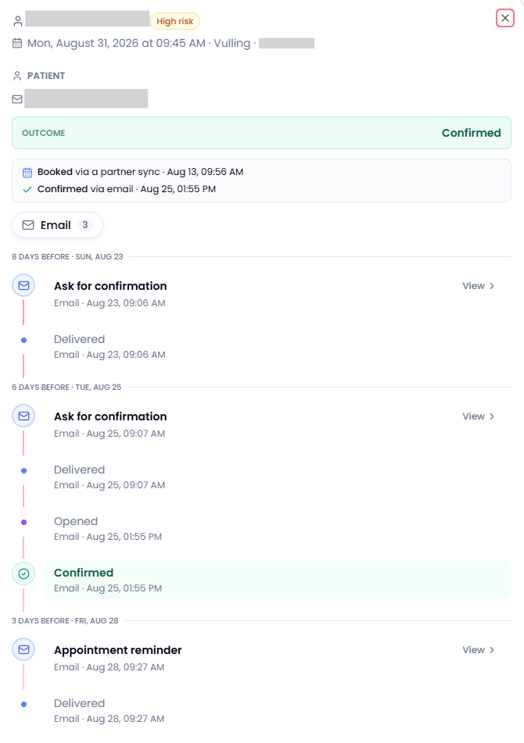
When you hover over a step in the timeline, you can see:
-
When the message was sent
-
Through which channel
-
Whether it was delivered or opened
-
The exact message the patient received
-
How the patient responded (confirmation or cancellation)
🎨 What do the colors mean?
Each step has a fixed color for quick interpretation:
-
🔵 Blue: Message sent and delivered
-
🟣 Purple: Message opened, no action taken
-
🟢 Green: Appointment confirmed
-
🔴 Red: Appointment cancelled
-
🟠 Orange: Message scheduled
-
⚫ Grey: Skipped (for example, because the channel is not activated/available for the patient)
🚀 What does this mean for your practice?
-
Quickly see whether a patient was effectively reached
-
Check whether communication was opened
-
Better assess whether additional follow-up is needed
-
Gain more insight into no-show behavior